FreeCRM enables seamless integration with WhatsApp Business from Meta, allowing you to engage with your contacts directly from your CRM. To activate this integration, you will first need a WhatsApp Business account.
Setting Up a WhatsApp Business Account
If you don’t have a WhatsApp Business account yet, you can set one up by following these steps:
Download the WhatsApp Business app from the Google Play Store or Apple App Store. Open the app and follow the prompts to create your account. You’ll need a unique phone number that isn’t already associated with a WhatsApp account.
Set up your business profile by entering your business information.
You will also need to set up programmatic access to your WhatsApp Business account. This is where things get a bit technical, but we’ll walk you through it.
Setting up your Business and getting an API key from Meta
Step 1
Create your business account in Meta Business Manager.
Step 2
Verify your business account. This part is required by Meta.
Step 3
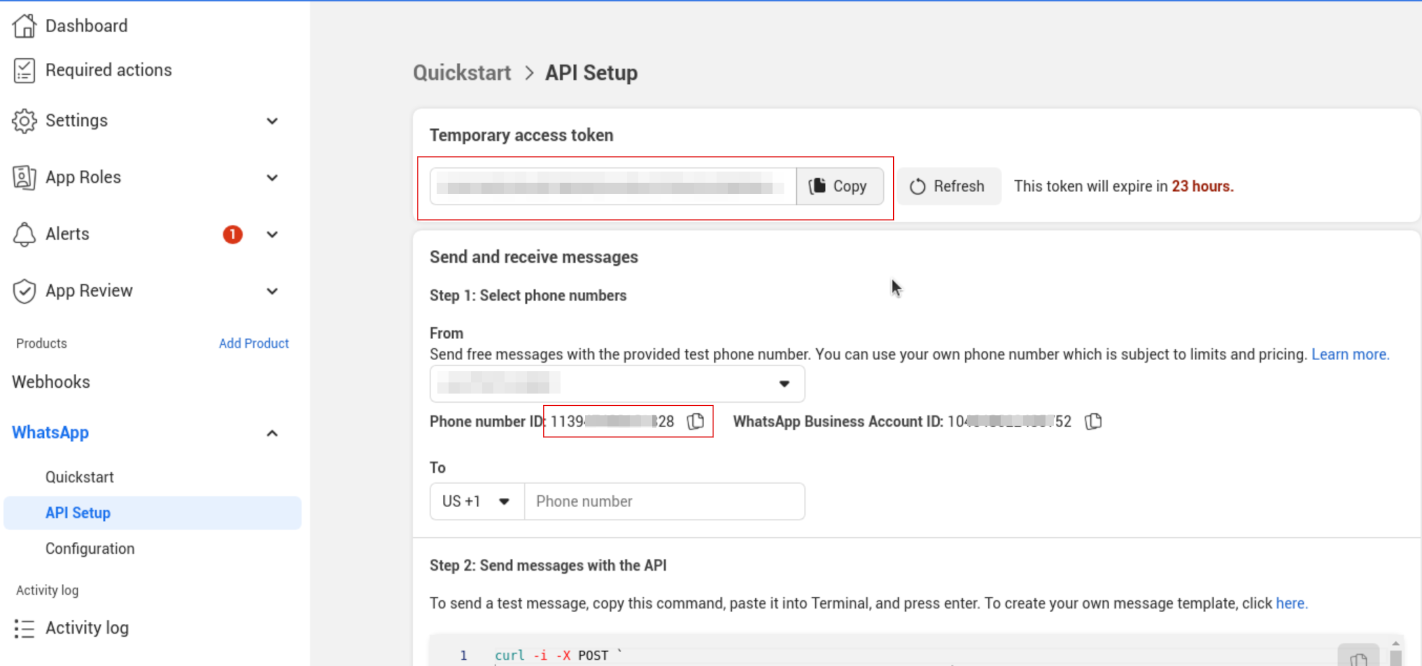
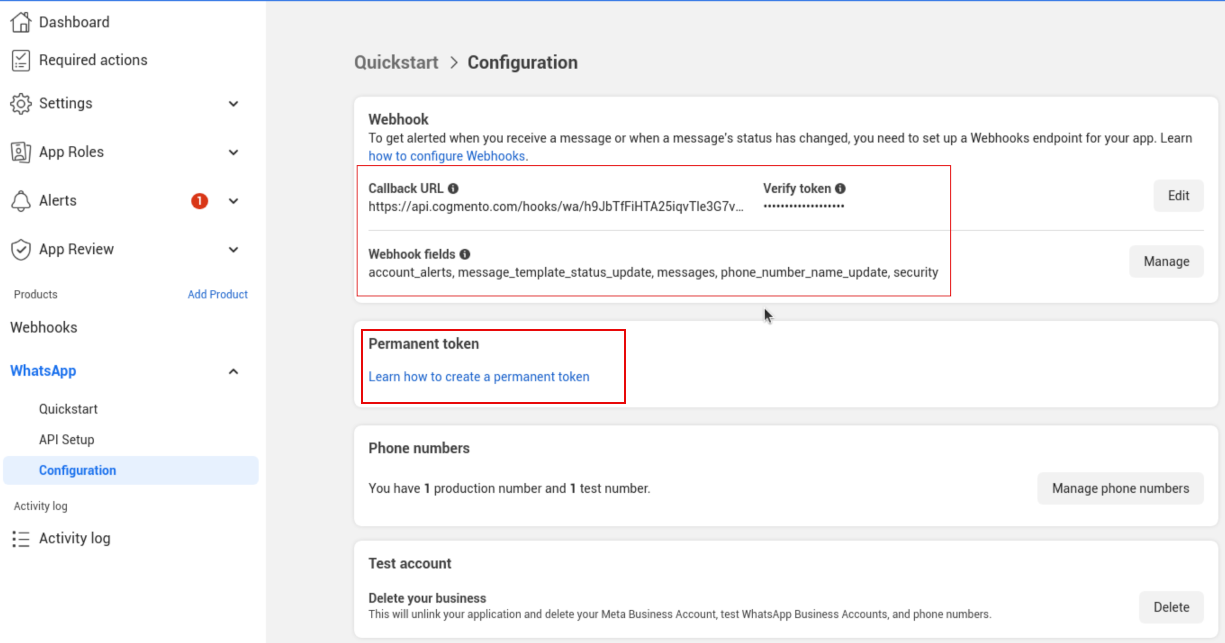
Create your business Facebook app, and look at the WhatsApp section. Meta allows you to create a temporary token, which can be used for 24 hours before it requires renewal. This might work for testing purposes, but it’s not ideal for regular usage. The WhatsApp Configuration screen has a link describing how to create a permanent token here
Activating WhatsApp Business Integration in FreeCRM
Once your WhatsApp Business account is ready, follow these steps to integrate it with FreeCRM:
Navigate to the ‘Settings’ area of FreeCRM, then to the Accounts tab and to the WhatsApp section.
Paste the WhatsApp token (ideally the permanent one) and the phone ID, which you can get from the Meta portal.
<Whats App Setup>
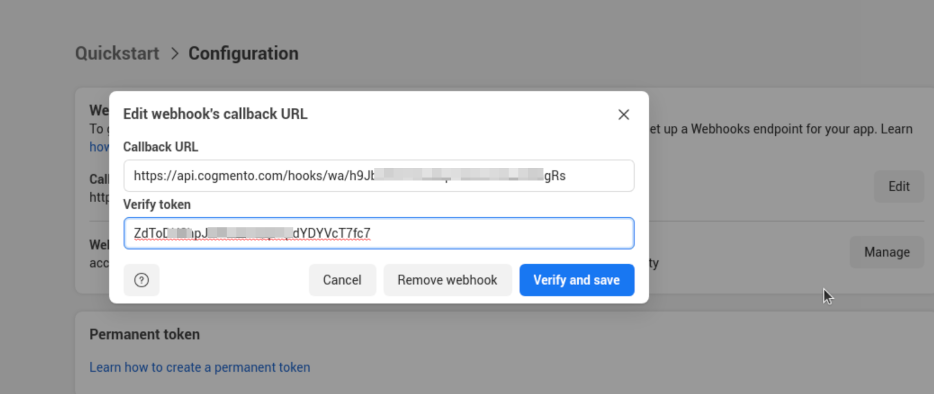
Once saved, you will be able to copy the webhook url and verification code back to Meta’s portal under the configuration screen:
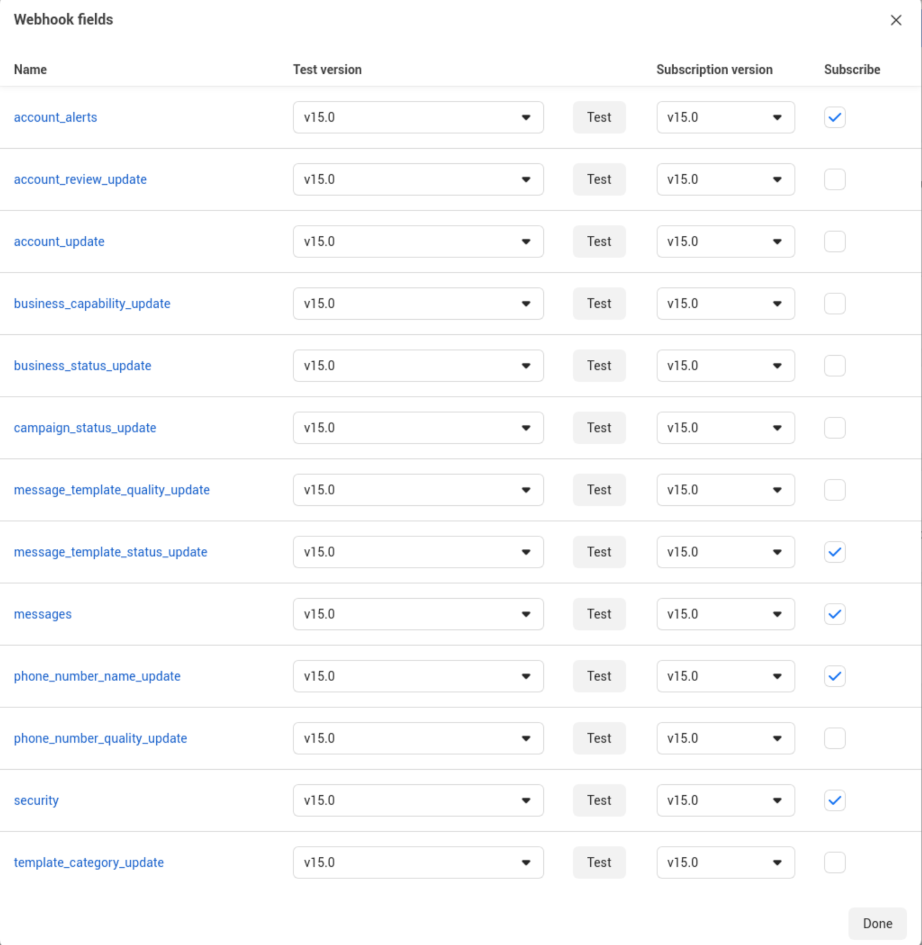
And setup the hook fields required:
Now we’re ready to send out messages.
Note that in order for a person to receive a message from your WhatsApp business integration they need to add you or interact with you before hand.
Under Contact pages you can find the WhatsApp logo in the toolbar, which expands to show available phone numbers where applicable.

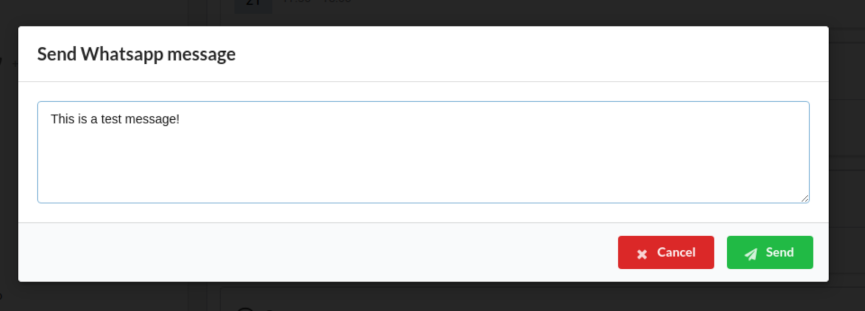
Click on the number to open the message box:
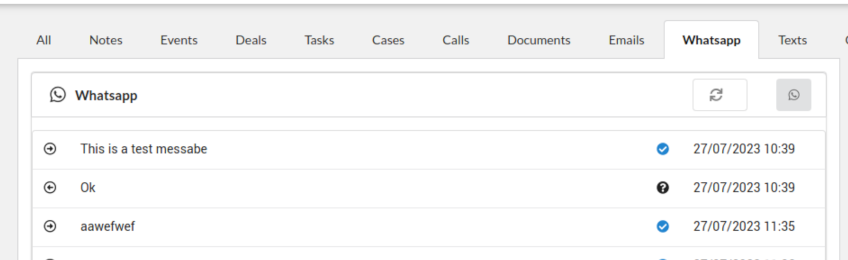
You can see the messages in the WhatsApp tab of each contact, as well as status updates and replies.
As WhatsApp Business and Meta’s APIs continue to evolve, there might be changes or additional capabilities to the integration process or features available. Always refer to the latest official documentation or updates from FreeCRM, WhatsApp Business, and Meta for the most current information.