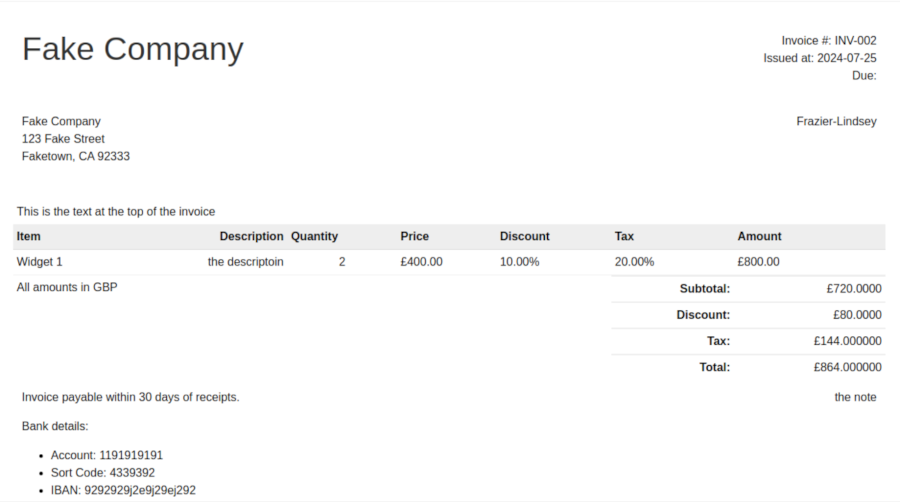
FreeCRM offers a comprehensive invoicing feature that lets you create, edit, and issue invoices directly in the system. This feature is designed to streamline your billing process and ensure all your financial transactions are well-documented and easily accessible.
Creating Invoices
There are two routes for creating invoices in FreeCRM:
Creating an Invoice from a Deal Record:
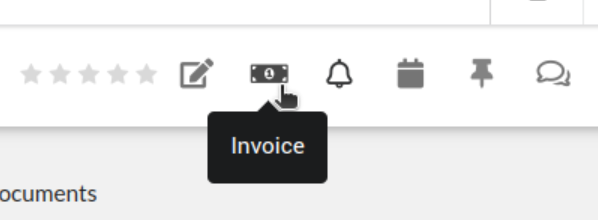
Navigate to the Deal record from which you wish to generate an invoice. Select the option to create an invoice from the deal - the money note icon at the deal header. This route will pre-fill the invoice with as much data as possible from the deal.
Review and edit the invoice to fill in any missing information.
Creating an Invoice from Scratch:
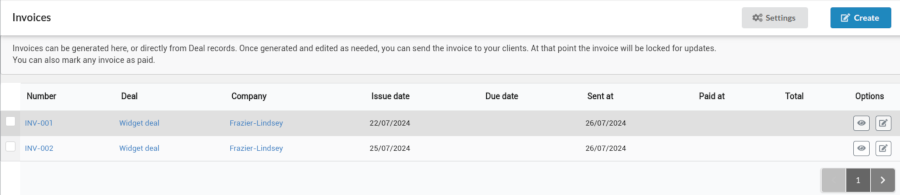
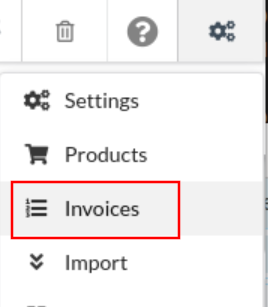
Go to the Invoices screen, available from the top right settings menu. Select the option to create a new invoice. Manually enter all required invoice details.
Setting Up Invoice Settings
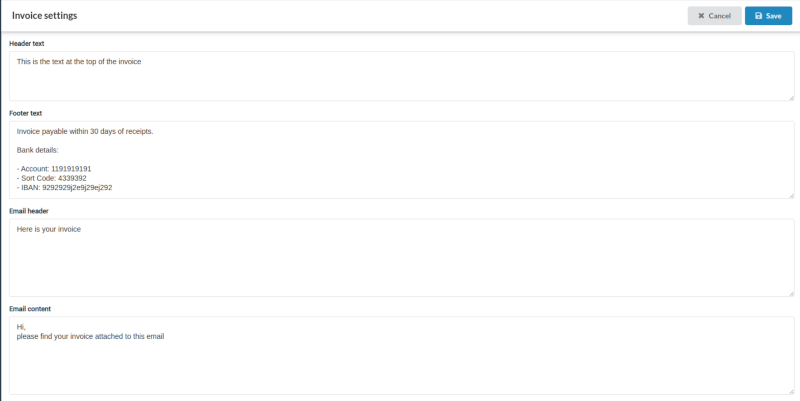
Before issuing invoices, it is recommended to configure your invoice settings to ensure that all necessary information is included in each invoice:
- Invoice Header and Footer Text: Set up the text that appears at the top and bottom of each invoice. This might include any additional contact information and any other relevant details.
- Email Settings: Determine the default text that will appear in the email when sending an invoice to a contact. This helps maintain a professional and consistent communication with your clients.
Issuing Invoices
Once an invoice is created, you can send it using the Send button on the invoice page.
- Send via Email : Invoices can be sent to an email address as PDF attachments. Ensure the email text is appropriate and includes all necessary information about the invoice.
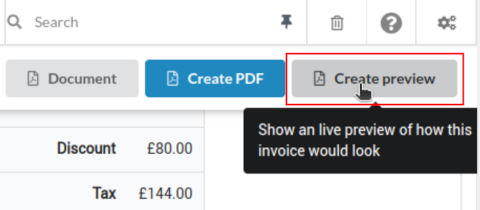
Preview Invoice: Before sending, you can preview how the invoice will look to ensure all details are correct.
Save as PDF: When you create an invoice PDF, a document is created in an “Invoices” folder within FreeCRM. If the invoice was generated from a deal, it will be associated with that deal for easy reference.